How to Secure Small Office Network Infrastructure
Most small offices aren't breached by sophisticated attackers. They're breached by an unpatched router, a shared Wi-Fi password that never changed, or a contractor who plugged into an open switch port. That reality should shape how you secure small office network infrastructure: start with what's likely, not a vendor's feature list.
Table of Contents
- Start with a Practical Threat Model and Prioritized Security Checklist
- Map Your Small Office Network: Layout, Cabling, and Device Inventory
- Router and Switch Security: Hardening the Core of Your Small Office Network
- Network Segmentation for Small Business: Separate Staff, Guest, and IoT Traffic
- Wi-Fi and Access Point Security: WPA3, Guest Networks, and Coverage
- Small Business Network Security Best Practices for Identity and Endpoints
- Your Network Security Checklist for Small Business: Monitoring, Backups, and Recovery
- Frequently Asked Questions
Last Updated: October 21, 2026
Start with a Practical Threat Model and Prioritized Security Checklist
A practical threat model for a small office network usually comes down to four realistic risks:
- Opportunistic scanning and default credentials. Internet-facing devices with factory passwords get found automatically.
- Insider and guest misuse. Shared passwords and open ports let anyone on the premises reach anything on the internal network.
- Unpatched firmware. Routers and access points sit unpatched for years because nobody owns the update schedule.
- Lost or stolen devices. A laptop or phone with saved credentials becomes an entry point.
Rank those by likelihood and fix them in order. A short, prioritized list beats a 40-page policy nobody reads. Here's a checklist to start with:
- Change every default admin password on routers, switches, and access points
- Disable remote management on the WAN side unless you specifically need it
- Turn on automatic firmware updates, or schedule a monthly manual check
Map Your Small Office Network: Layout, Cabling, and Device Inventory
You can't secure what you can't see.
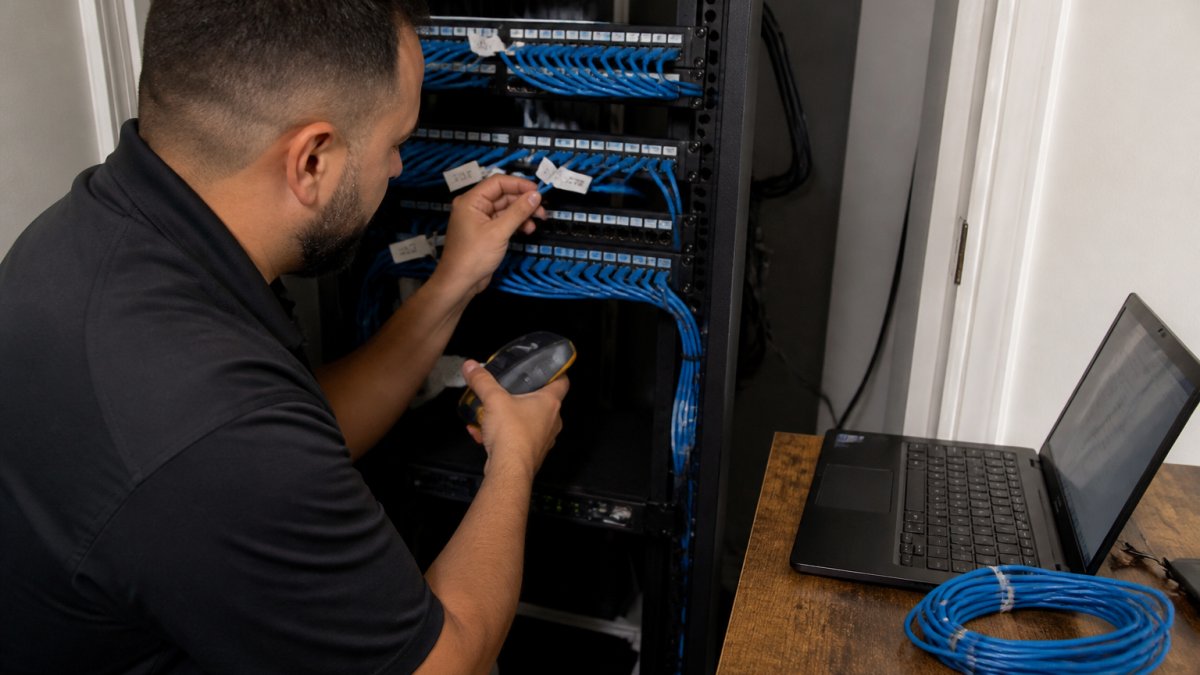
Start with a physical walkthrough. Note the router, switches, access points, firewall, and any IoT devices (printers, cameras, thermostats, door controllers), recording model, firmware version, and location.
Label everything. Cable labeling and a simple port map save hours during an incident.
The payoff: once you know every device, you can spot the ones that shouldn't be there.
Router and Switch Security: Hardening the Core of Your Small Office Network
Router and switch security is the foundation of a defensible small office network. If the core is weak, nothing built on top holds.
Work through these hardening steps in order:
- Change default credentials on the router and every managed switch. Use unique, long passwords stored in a password manager.
- Disable WAN-side management. Admin interfaces should only be reachable from inside the network.
- Turn off unused services such as UPnP, Telnet, and remote HTTP admin where the device allows it.
- Apply firmware updates. Enable automatic updates or set a monthly reminder.
- Restrict switch port access. Disable unused ports and assign active ports to the correct VLAN.
- Enable logging and forward logs to a central location if the hardware supports it.
Document the configuration once hardened. A saved config file means a failed switch is replaced in minutes, not days.
Network Segmentation for Small Business: Separate Staff, Guest, and IoT Traffic
Network segmentation for small business means splitting one flat network into separate segments so a compromised device can't freely reach the others. It's the highest-value change most small offices can make, and where most guides stop at a diagram. Here's how to build it.
A workable three-segment design looks like this:
| Segment | Example subnet | Who's on it | Access rules |
|---|---|---|---|
| Staff (VLAN 10) | 192.168.10.0/24 | Employees, company laptops, servers | Full internal access, restricted outbound |
| Guest (VLAN 20) | 192.168.20.0/24 | Visitors, personal phones | Internet only, no internal access |
| IoT / device (VLAN 30) | 192.168.30.0/24 | Cameras, printers, thermostats, access control | Internet only where required, isolated from staff |
The mechanics: VLANs, subnets, and trunks
A VLAN is a logical switch partition; a subnet is the IP range assigned to it. You need both. On a managed switch, assign each access port to one VLAN (untagged) and configure the uplink to the router or firewall as a trunk (tagged) carrying all VLANs.
A common small-office pattern is a single Layer 3 switch or a firewall with multiple internal interfaces doing inter-VLAN routing.
Writing the firewall rules
Default-deny between segments, then allow only what's needed. A practical starting rule set:
- Guest to anywhere internal: deny. Guest devices get DHCP and DNS from the guest gateway and internet access only.
- IoT to staff: deny. If a printer must be reachable from staff laptops, allow staff-to-IoT on the specific print ports (typically TCP 9100 or IPP on 631) rather than opening the whole segment.
- Staff to IoT: allow only the specific services staff need (printing, camera viewing), not a blanket permit.
Enable client isolation (also called AP isolation or port isolation) on the guest wireless network so guests can't reach each other either. That single checkbox closes the most common guest-network exposure.
Verify the segmentation actually works
After configuring, test from each segment: from a guest device, ping a staff server and open the router admin page, both should fail. From an IoT device, reach for a staff file share, it should fail. If any test succeeds, a rule or trunk is misconfigured. Repeat after every firmware update, since some reset interface assignments.
Document the VLAN IDs, subnets, and rule set in the same inventory spreadsheet. When someone adds a device or a new hire, the map tells you which port and rule to touch.
Wi-Fi and Access Point Security: WPA3, Guest Networks, and Coverage
Wi-Fi is usually the weakest link in a small office network because everyone touches it. Secure it with three controls: strong encryption, a separate guest network, and adequate coverage so people don't improvise with rogue access points.
Use WPA3 where supported, and WPA2-Enterprise or WPA3-Enterprise for staff where you can manage certificates or RADIUS. Never run an open network for staff.
Coverage matters for security too. Dead zones push employees to plug in personal travel routers or ask for the admin password. A site survey and correctly placed access points remove that temptation.
Small Business Network Security Best Practices for Identity and Endpoints
Identity and endpoint security is where most breaches get stopped. Even a well-segmented network fails if one stolen password hands an attacker the keys.
Apply these small business network security best practices:
- Require multi-factor authentication on email, admin accounts, and remote access.
- Use unique accounts per person. No shared logins for staff systems.
- Enforce screen locks and full-disk encryption on laptops and phones.
For offices handling sensitive data, such as healthcare or education, check the relevant requirements for access control and audit logging. The NIST Cybersecurity Framework offers a practical structure for organizing these controls even in a small environment.
Your Network Security Checklist for Small Business: Monitoring, Backups, and Recovery
A network security checklist for small business is only useful if it covers what happens after something goes wrong. Here are the specific signals to watch, the backup cadence that survives a failure, and a short response sequence you can run at 2 a.m.
What to monitor (and the thresholds that matter)
You don't need a SIEM. You need a handful of alerts that fire on the events that precede most small-office incidents:
- Failed admin logins: alert after 5 failures from the same source within 10 minutes. Repeated failures on the router or firewall admin page are the clearest early sign of a credential attack.
- New devices joining the network: alert on any MAC address not in your inventory. A new device on the staff VLAN that nobody recognizes is worth a phone call.
- Firmware or configuration changes: alert when a device's firmware version or saved config hash changes outside a scheduled maintenance window.
Most small-business routers and access points include logging and email alerts at no extra cost; enable them and route alerts to a shared mailbox someone checks. Review logs weekly, not just when something breaks.
Backups: what to save and how often
Back up three things on a schedule:
- Device configurations for the router, firewall, every managed switch, and every access point, after any change and at least monthly. Store them off the device (a password manager entry or an encrypted folder), not just on the device's flash.
- Critical business data on a cadence matched to how much you can afford to lose, daily is a common small-office baseline.
- The inventory and network diagram from earlier in this guide, so a replacement device can be configured without reverse-engineering the old one.
Follow the 3-2-1 pattern: three copies, on two different media, with one off-site. A configuration backup that lives only on the switch it came from is not a backup.
Test the restore, not just the backup
An untested backup is a hope, not a plan. Twice a year, restore a device configuration to a spare or lab unit and confirm it comes up with the expected VLANs, rules, and credentials. For data backups, restore a sample folder and open a file. Record the date and result, a failed restore found on a quiet Tuesday beats one found during an outage.
A short incident response sequence
When you suspect a compromise, work in this order:
- Isolate, don't power off. Disable the switch port or move the device to a quarantine VLAN. Powering off can destroy volatile evidence and may trigger failover behavior you don't expect.
- Preserve the config and logs from the affected device before changing anything.
- Rotate credentials for admin accounts and any shared Wi-Fi or VPN credentials that device could reach.
- Restore from a known-good configuration rather than trying to clean a compromised device in place.
- Notify the people who need to know, staff whose accounts may be affected, and any party with contractual or regulatory notification obligations.
- Write down what happened and update the checklist so the same path is closed.
For a fuller structure, the CISA small business guidance covers practical recovery steps, and the NIST Cybersecurity Framework provides a recognized way to organize identify, protect, detect, respond, and recover activities even in a small environment.
Frequently Asked Questions
How do I secure a small office network without replacing all my equipment?
You can secure a small office network without a full hardware refresh by prioritizing configuration changes. Start with firmware updates on your router and switches, change default admin credentials, and enable WPA3 on your wireless access points. Create a separate guest network and use VLANs to isolate staff, guest, and IoT traffic if your switches support them. Disable unused ports and remote management. These steps address the most common unauthorized access risks before you spend on new gear.
What should a small business network security checklist include?
A practical network security checklist for small business covers firmware updates, strong authentication, and segmentation. Include: inventory every network device; change default passwords; enable WPA3 and a guest network; segment staff, guest, and IoT traffic; disable unused switch ports; configure firewall rules to limit lateral communication; set up logging and alerts; test backups quarterly; and review access permissions every 90 days. Keep the checklist visible and assign an owner so items do not slip.
How often should small businesses update network devices and review access?
Update firmware monthly for internet-facing devices like routers and firewalls, and quarterly for switches and access points unless a critical patch is released. Review user access and admin permissions every 90 days, and immediately when an employee leaves. Check firewall rules and guest network settings at the same time. Automate update alerts where possible and log every change so you can trace issues back to a specific configuration edit.
How can I separate guest Wi-Fi from business devices?
Use your router or access point's guest network feature to create a separate SSID with client isolation enabled. For stronger separation, assign the guest network to its own VLAN and apply firewall rules that block guest-to-staff traffic while allowing internet access only. Never place guest Wi-Fi on the same subnet as servers, cameras, or access control systems. Test the separation by trying to reach an internal device from a guest connection.
- Hits: 8